In a racing environment, having accurate and timely data is critical. For the race engineer, being able to see what the ECU and the driver is doing can mean the difference between being able to fine tune an ECU for the race track and not.
With a basic ECU setup with no datalogging, we must rely on verbal descriptions from the driver. Unless the driver is also an experienced tuner, this description can sometimes be misleading and incomplete. With logged data, the information is certainly more complete, but also less timely. With telemetry, the information is virtually “live” which means that as the engineer, you can determine what adjustments to make the next time the car comes in, rather than only being able to retrieve the data the next time the car comes in, then analysing this data as the car is out in its next session, and then being able to tweak the map when the car next comes in.
The following are what you need for the set-up:
Bits
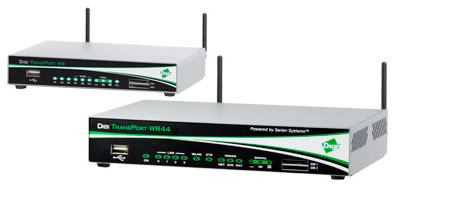
Firstly, you need to know the bits that you need. You will need a wireless router. You can either use Digi WR44 or you could also use a WR21. The router must have a GSM or a 3G SIM card slot, an antenna connection, serial port and you will need an Ethernet port to configure the router. The WR44 router has 4 Ethernet ports and WR21 has single port.
Antenna for the Router
You will need an antenna for the router too. The WR44 comes with some stub antennas as you see in the picture above, but there are also glass patch antennas and through-body mounting antennas available for areas with weaker reception.
SIM Card
You will also need a SIM card to access the data network. A prepaid SIM card is often the best option for sporadic use.
Serial Cable
You will need a serial cable to connect the “serial in” port on the ECU to the router. If you’re using a Select ECU, you will need an Innovate Motorsports D9 to 2.5mm cable. Otherwise if you’re using an e420c or an e1280s ECU, you can use a straight-through D9 male to female cable to connect from the ECU to the router.
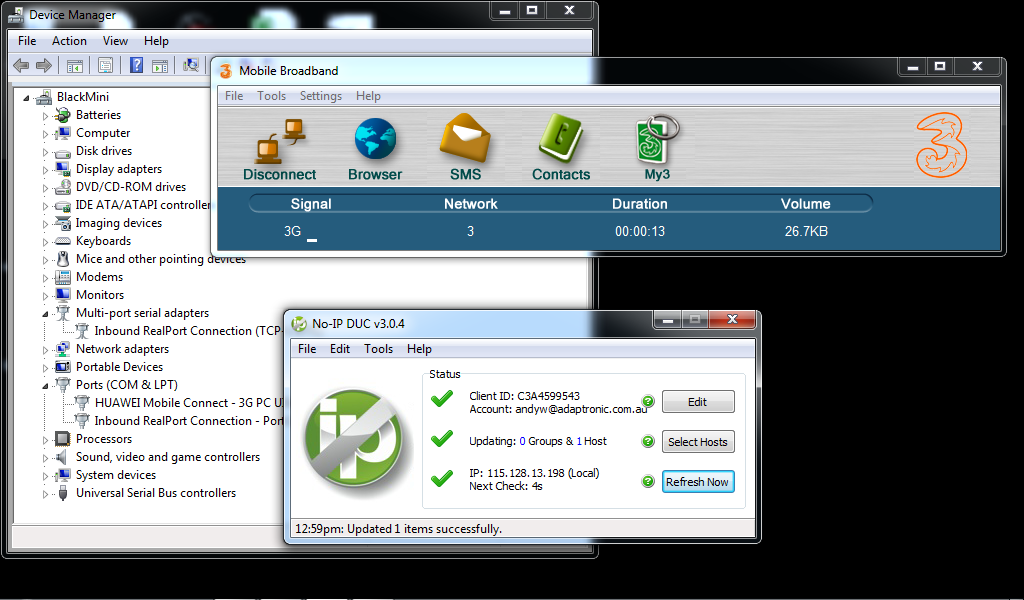
You will also need a PC or a laptop which you will use to receive the data and analyse it. This will need to have an externally accessible IP address. If you’re using an internet connection with a dynamic IP address, you can use a third party DNS provider called “no-ip.org”. You can create an account on that website and you need to install their client on your computer or laptop so that it will connect to the server. The “no-ip.org” will then allow the router to refer to your laptop by a hostname instead of needing to know the IP address.
Here are the steps for the set-up:
Step 1:
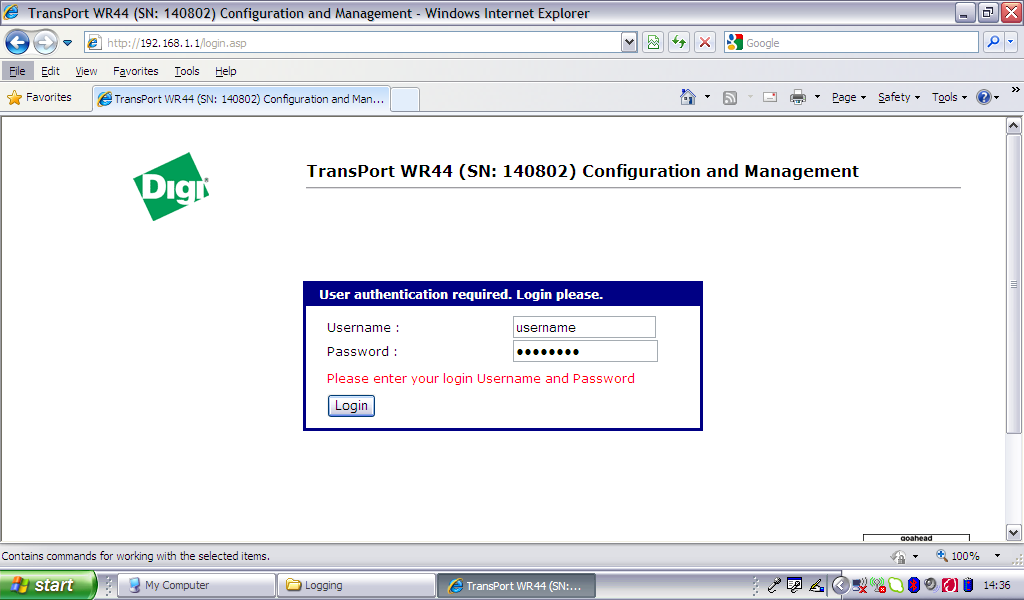
You install the Sim Card then connect the antenna to the router. You will need to configure the router. Use your laptop to connect into the LAN port on the router. Don’t forget to disable the wireless networking option in your laptop. Turn on the power then go to 192.168.1.1. You should set-up the APN and the PIN code for the router so that it can access the data network (this information will be with your prepaid data SIM card). After this is set up, confirm that the router is online by trying to connect to the Internet from your laptop.
Step 2:
You need to set-up the “Device Initiated Real port.” This means that the router will connect to the laptop by finding the hostname on the web. A hostbane address should already been set-up with no-ip.org for you to use that. You need to set your hostname with no-ip.org as the host for the Device Initiated Real Port.

Step 3:
You will also have to install the COM port redirector from Real port. And make sure that you have set it up as a Device Initiated connection. When you switch the router on, it will connect to your host and you will see the changes and it says “successfully connected.”
Step 4:
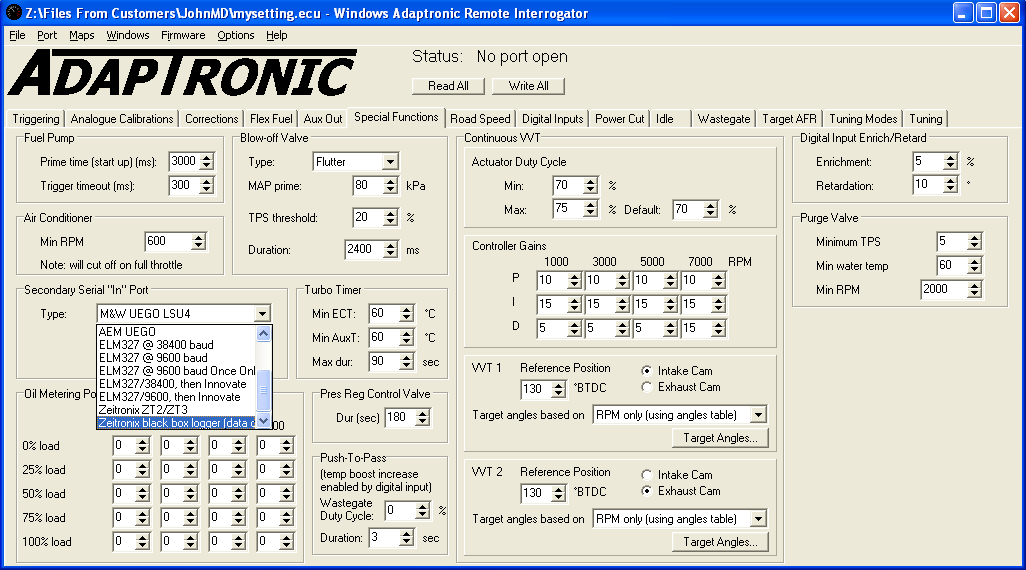
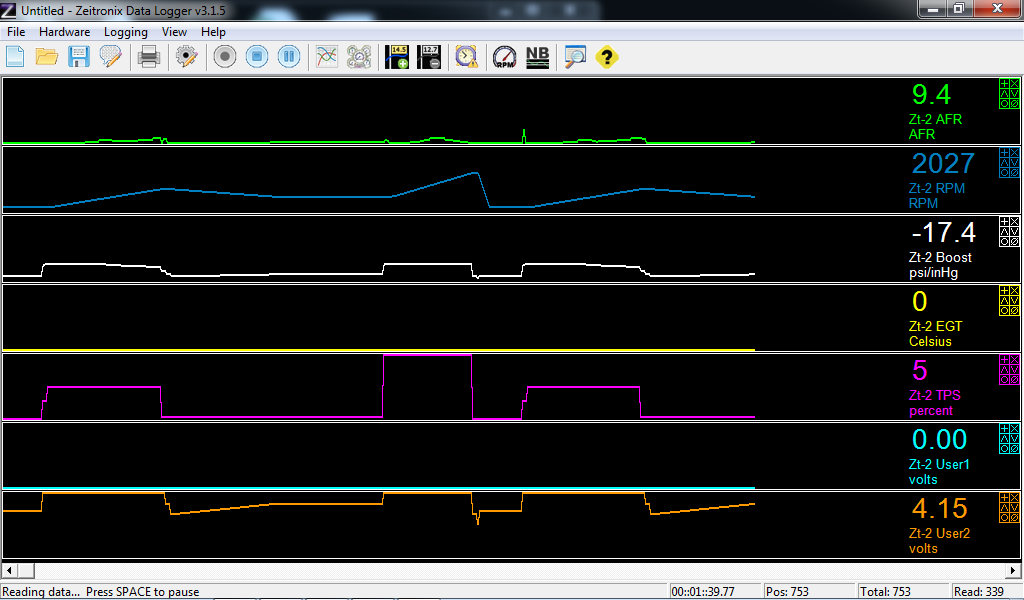
When it is connected to the ECU, the ECU will spread out the data after you have set te serial port settings to Zeitronix output. You can then run the Zeitronix software on your laptop and look at the output on your ECU.
For more information, ask any questions on the forum.